Starting SciCell++ on Windows
Overview
Run Docker container with SciCell++
Run the Docker Desktop application. If you installed it with the default options then it should be already running on the backgroud. Open the interface by double clicking the docker icon at the botton-right menu of your task bar and check no errors are reported.
Open a
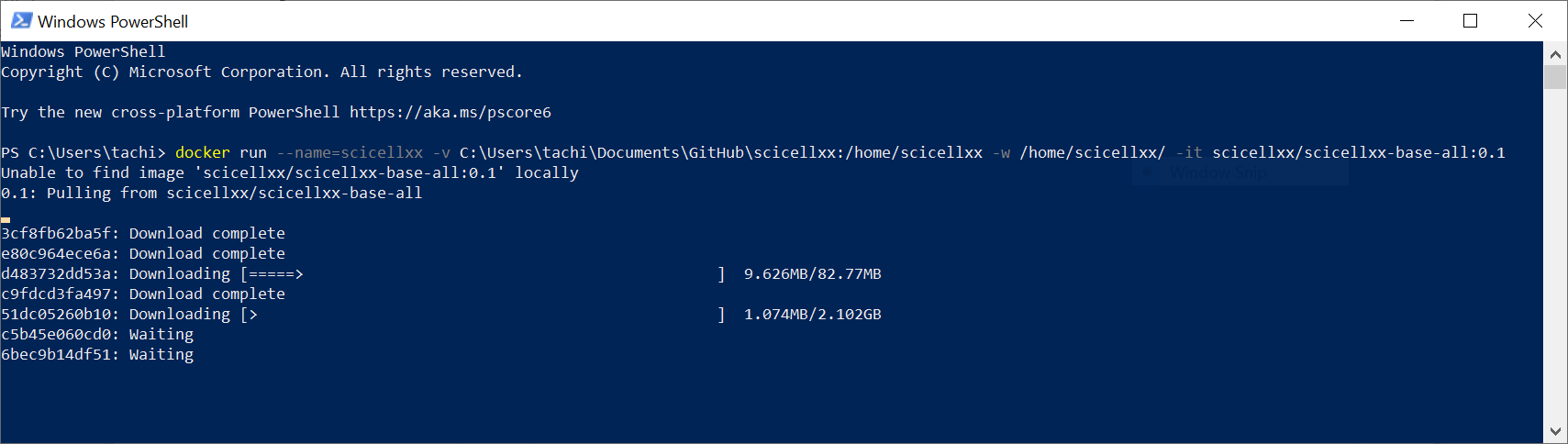
Windows PowerShell(there is no need to do so with administrative rights) and type the following.docker run --name=scicellxx -v C:\Users\tachi\Documents\GitHub\scicellxx:/home/scicellxx -w /home/scicellxx/ -it scicellxx/scicellxx-base-all:0.1
Warning
Make sure to change
C:\Users\tachi\Documents\GitHub\scicellxxby the path where you cloned the SciCell++ repository in your local machine.You should have a similar output as that shown in the image. Wait for completion.
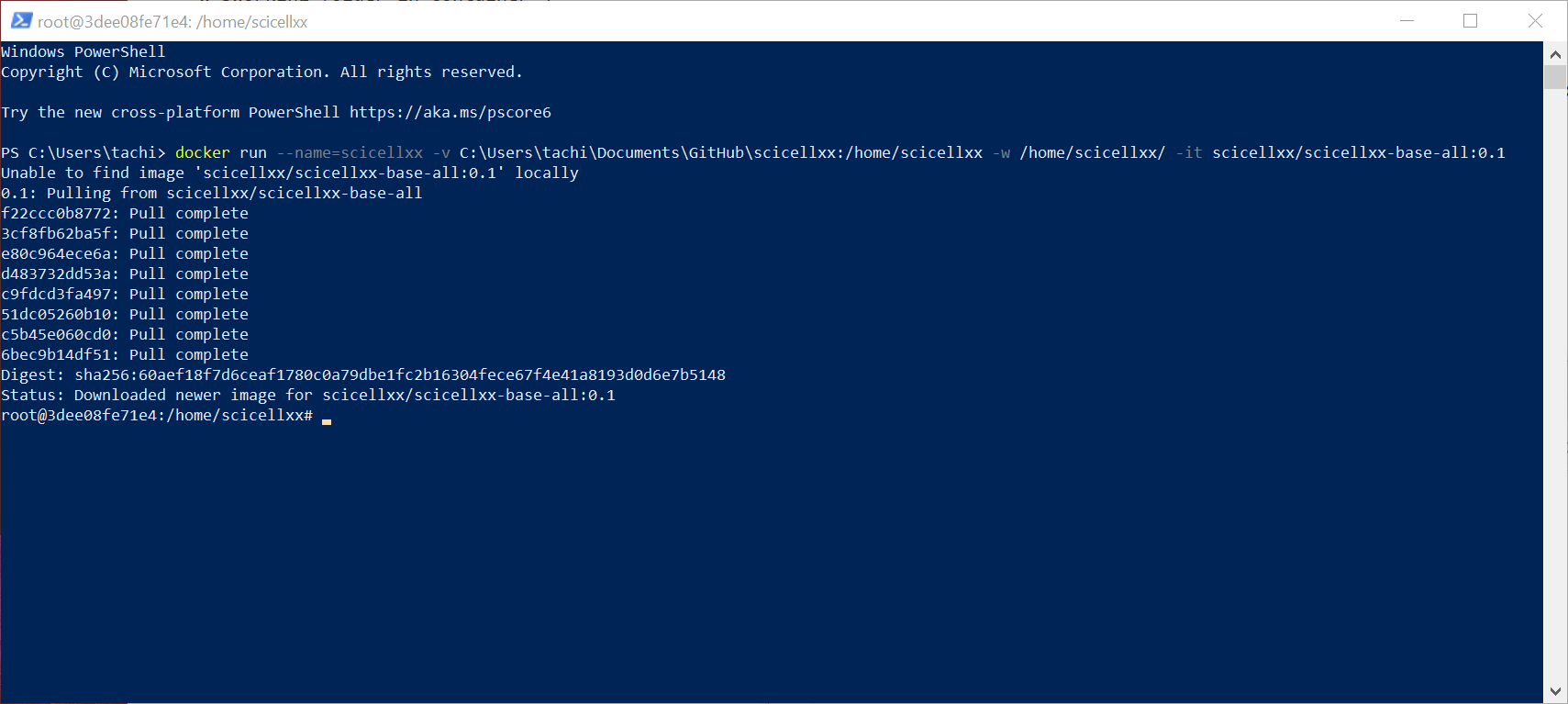
Once finished, you should have a prompt as that shown in the image. That means SciCell++ is ready to run.
You could also check the docker interface that should show a running image with the name
scicellxxas shown below: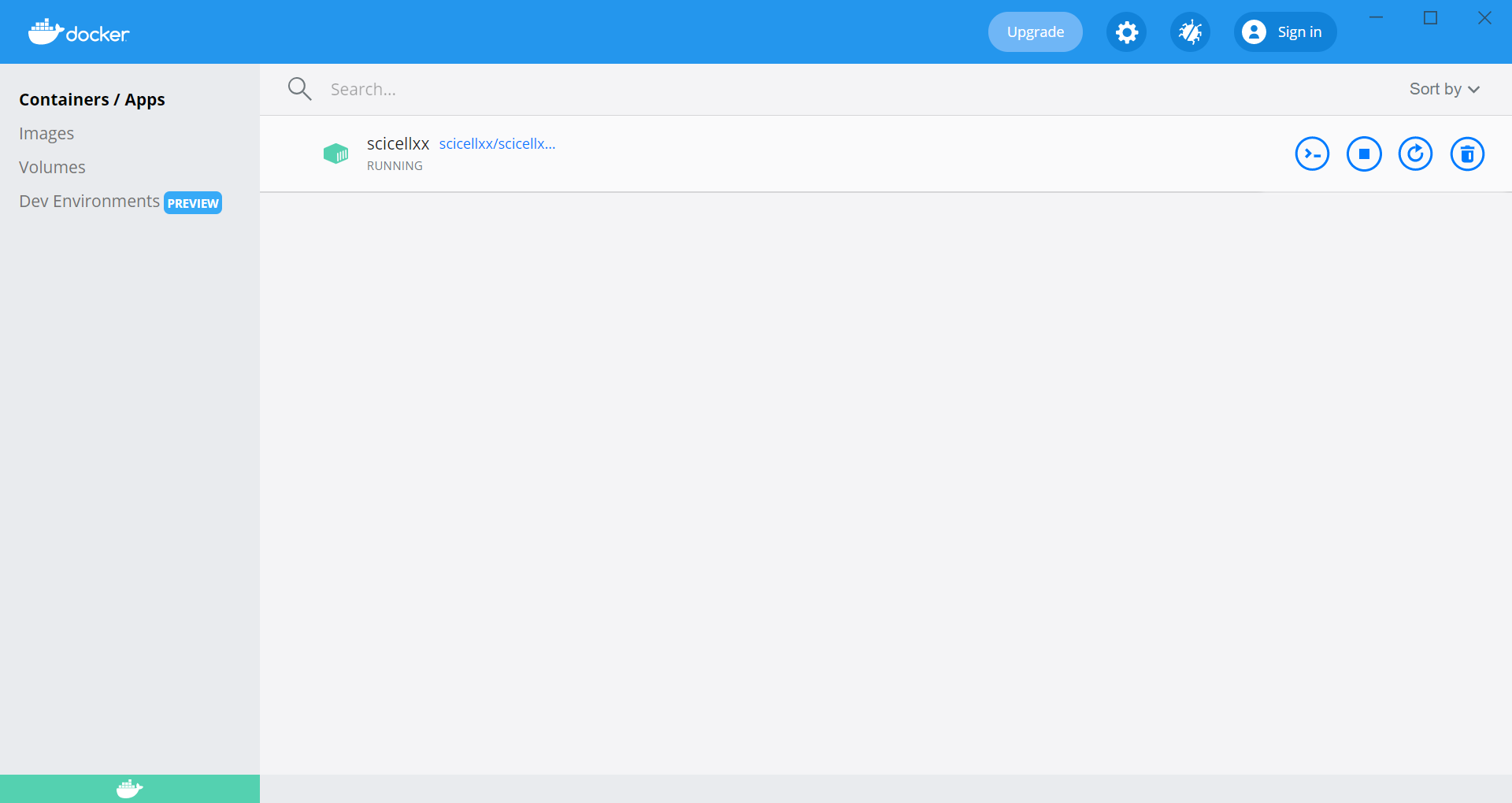
From here on you can continue with the configuration step at the initial steps document.
Troubleshooting
I am getting an error when running the docker run command
If you get an error when running the docker run command stating
that the name /scicellxx is already in use by another container
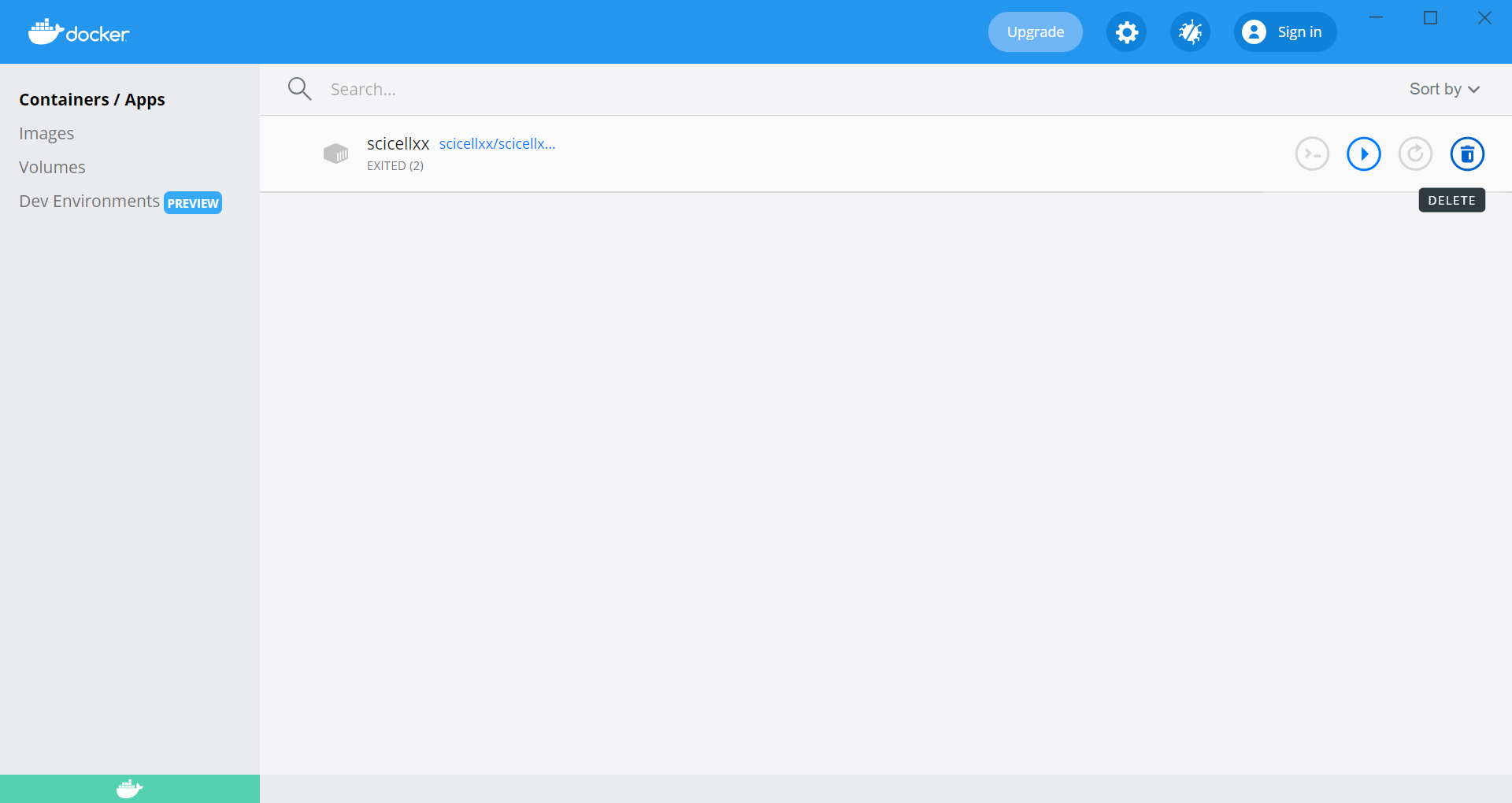
then you need to DELETE that container in your docker interface.
Open the docker interface and in the
Containers/Appssection find thescicellxxcontainer and click on theTrash canicon to delete it.